Tours, Tasks and Vehicles
Organize the work, bring the right people and equipment, and follow progress together.
Preview of planned functionality
This guide describes the intended standard Tour experience for review. Parts of it are not yet available. The illustrations explain the workflow; they are not screenshots of the finished app.
Understand the four pieces
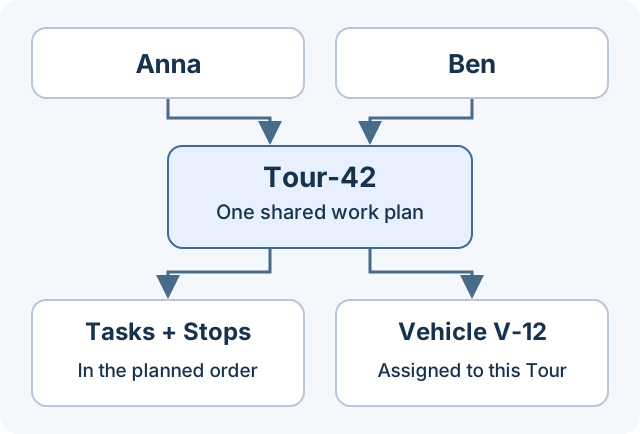
| In Tourfold | What it means | Example |
|---|---|---|
| Task | A piece of work to complete. | Inspect a pump or call the customer. |
| Stop | A place in the Tour's sequence, optionally containing Tasks. | Two inspections at the same depot. |
| Tour | An ordered plan of work shared by its participants. | Anna and Ben's morning maintenance round. |
| Vehicle | A resource assigned to the Tour when needed. | Van V-12, carrying the team's equipment. |
A Tour can contain Tasks at Stops, Tasks without a Stop, and Stops without Tasks. It can have several participants and several Vehicles—or no Vehicle at all.
Follow one Tour from planning to finish
- Plan the work. Choose Default or a named Tour template. Add participants, arrange Tasks and Stops, and assign a Vehicle if needed. Publish the Tour when it is ready for the team.
- Start together. One authorized participant starts the Tour. Everyone else opens that same Tour on their own phone; they do not each start a separate copy.
- Complete the work. Mark ordinary Tasks done, answer question Tasks, and complete Stops that have no Tasks. Changes are shared with the team.
- Finish. Once the work is complete, finish the Tour. Its Vehicle is released from active use, and the completed Tour remains as a record.
You can also start an unplanned Tour when work arises, if your permissions allow it.
Separate the work from the location
Assign a Vehicle to a Tour so the team knows which Vehicle to use. At Start, Tourfold can link the starting phone to that Vehicle to supply GPS, if no installed tracker or tablet takes priority. You do not need a separate phone-assignment step.
Several people can work on the Tour from their own phones. At most one associated Device supplies the Vehicle's location at a time; that may be a phone, fixed tablet or tracker. Supplying GPS does not make someone the Tour owner, and a person does not need to supply GPS to do their work.
Know what happens when plans change
- Vehicle already in use: it cannot be used by two active Tours. Planning it for later does not guarantee that it will be free when you start.
- Different Vehicle on the day: an authorized person can replace the assignment explicitly.
- No location available: otherwise valid Tour work can continue; location age and reporting status remain visible.
- Finished Tour: its assignments and work are kept as history and cannot be edited.
Choose your next step
| I want to… | Read |
|---|---|
| Prepare a Tour, templates and requirements | Plan a Tour |
| Understand how work is organized | Tasks and Stops |
| Start, work with teammates and finish | Work on a Tour |
| Select a Vehicle, scan a label or understand GPS | Vehicles and location |
Actions depend on your permissions. If you can view a Tour but cannot change its plan or Vehicle, ask your workspace administrator which actions your role allows.