Vehicles and location
Know which Vehicle your Tour uses and which Device supplies its location.
Preview of planned functionality
This article describes the intended standard workflow, including planned scanning and label printing. Parts are not yet available; final screens may differ.
Keep the three relationships clear
| Relationship | What it tells you |
|---|---|
| You participate in a Tour | This is your team's work. Your permissions determine what you can do. |
| A Vehicle is assigned to the Tour | This is a resource the team plans to use or is using. |
| Your phone or tablet is linked to a Vehicle | It can supply the Vehicle's GPS location when selected as the location source. |
Planning a Vehicle does not link anyone's phone. When you confirm Start, Tourfold can link the starting phone if it will supply GPS. A Vehicle does not belong to a driver, and linking a phone does not give its user access to every Tour using that Vehicle.
If your role allows Vehicle assignment without Tour planning, choose Edit Vehicles on your Tour. You can change its Vehicles without changing the description, schedule or participants. On an active Tour in the mobile app, Use a Vehicle uses the same assignment permission; starting and finishing still require their own permissions.
Review Vehicle assignment history
Open a Tour and choose Vehicle assignment history. Each entry shows when the Vehicle was assigned, when it was removed, and when it was actually used. Still assigned means the Vehicle remains on the Tour; it can appear together with Use ended after the Tour finishes. Not used on this Tour means the assignment was planned but has not been used.
Changing a role keeps the same entry. Removing and later adding the Vehicle creates another entry, so earlier use remains visible. Vehicle names reflect their current names. If you can read the Tour but cannot read its Vehicles, the history hides the Vehicle details.
Select or scan a Vehicle
In the Tour's Vehicle selection, search by the displayed Vehicle name. You can also choose Find by license plate, VIN or QR link and enter the complete identifier or paste a Vehicle QR link. Use the same spelling, spaces, punctuation and letter case as the saved value. Your workspace must have a licence-plate or VIN field configured for that kind of Vehicle.
Choose Find Vehicle, review the matches, then choose Add for the correct Vehicle. Several Vehicles can share an identifier. Adding one updates your pending selection; Save or Start confirms the action. Closing the lookup changes nothing. A QR link from another workspace cannot change the current Tour's workspace. If nothing matches, check the text or search by Vehicle name.
In the mobile app, choose Scan Vehicle from that same selection. Allow camera access when asked. If the camera is unavailable, you can still search manually.
The scanner continuously looks for Tourfold Vehicle QR codes, licence plates and vehicle identification numbers (VINs) in one camera view. You do not need to choose a recognition mode. Plate and VIN lookup work when your workspace has those fields configured and populated on the Vehicle.
Review the recognized result and choose Use to accept it. If several Vehicles match, choose the correct one; you can also correct recognized text or use manual search. Scanning alone never changes an assignment. Edit pauses the camera while you correct the identifier; Restart camera returns to scanning. Leaving the app also pauses the camera until you restart it. NFC is not included in this first release.
A QR code scanned inside Vehicle selection supplies a candidate for that action. Scanning the same label with your phone's normal camera opens Vehicle details, with sign-in if needed. It does not assign the Vehicle or start a Tour.
The link uses the app configured for your workspace: Tourfold by default, or your organization's branded app. You do not need to choose between apps, even if several are installed. The link opens a browser page with Open in [App name]. If the app is missing, use its installation link when available, then open the QR link again. After signing in, you continue to the scanned Vehicle's details. If your phone is still set up for another workspace, use More → Log out Device before opening the link again. Scanning a label never silently disconnects that Device or moves it to another workspace. Once the Device is logged out, you can confirm switching to the link's workspace.
The printed QR code stays the same if your workspace changes its configured app.
Fixed to a Vehicle or portable
A manager can choose Fixed to vehicle when a Device normally belongs to one Vehicle. It can still be taken out overnight to charge: that does not change its Vehicle association. The setting stays in place when people sign in, sign out or start work elsewhere. Choose Portable for a phone that moves between Vehicles. Changing a fixed association is a management action.
An authorized Disconnect this Device or Log out Device action ends the fixed association. The app Device can then be used as portable when it is next assigned, unless a manager configures it as fixed again. Disconnecting does not immediately link it to another Vehicle. Simply signing out of your user account keeps the fixed association.
A Vehicle can have several fixed tablets, for example in the cab and at a rear workstation. When the first tablet is fixed to the Vehicle, no extra source choice is needed. With several, a manager chooses which supplies GPS when there is no configured tracker. The other tablets stay associated and can be used for work with the usual permissions. Tourfold remembers this choice even while a tracker supplies location.
A portable phone can move between Vehicles. When it supplies a Vehicle's GPS location, Tourfold links it to that Vehicle. Other team members can work on the Tour without linking their phones. Association mode does not give a user additional access to Tours.
Manage a Vehicle’s Devices
Open a Vehicle and choose Devices. You need read access to both Vehicles and Devices to see its associations, and update access to both to manage them.
- Choose Associate Device, search for an existing Device and select Fixed to this Vehicle or Portable. A dedicated tracker always uses a fixed association.
- Use Configure to change or confirm an existing association’s mode. An unconfirmed legacy association is not treated as portable.
- Choose Use as fixed GPS Device to select the tablet used when no tracker has priority. Choose Use for GPS to select an eligible tracker or phone. The confirmation explains the change; the other Devices remain associated.
- Choose Release association to end the relationship and its GPS role. This keeps the Device registered and preserves history. It does not automatically choose another source.
A Device already associated elsewhere must be released there before you associate it here. If another manager changes an association while you are editing, refresh the list and review the current state before trying again. If a request’s result is uncertain, also refresh before making another change.
Understand the GPS source
At most one Device supplies each Vehicle's current location. With valid source configuration, Tourfold uses this priority at Start:
| Vehicle setup | GPS source |
|---|---|
| One configured dedicated tracker | That tracker. |
| Several configured dedicated trackers | The tracker chosen by a manager. |
| No tracker, one fixed tablet | That tablet. |
| No tracker, several fixed tablets | The tablet chosen by a manager. |
| Neither, and an authorized agent starts from a phone | The starting phone. |
| Neither, and a dispatcher starts without a phone | Keep a valid existing source, if any; otherwise select a phone explicitly when ready. |
A Vehicle can have several trackers, for example while a replacement is being installed. Configuring the first needs no extra source choice. With several, a manager chooses which supplies location. Adding another tracker keeps the current selection. If the selected tracker goes offline, Tourfold shows its status and last-known position; it does not switch automatically. A manager can explicitly select another tracker without removing the existing associations.
If the selected configured source is removed, Tourfold does not automatically pick another. A manager must choose the replacement while other configured sources remain, even if only one is left. Starting a Tour does not bypass that missing choice. If no configured sources remain, a later Start can select an authorized portable phone. Missing GPS does not prevent otherwise valid Tour work.
A starting phone does not replace a tracker or fixed tablet. It can replace a previous portable phone as the source when permissions allow. With several Vehicles, choose which Vehicle this phone will track. Other participants simply open the shared Tour; their phones need no Vehicle association.
In this example, V-12 has neither a tracker nor a fixed tablet, so Anna's starting phone supplies GPS:
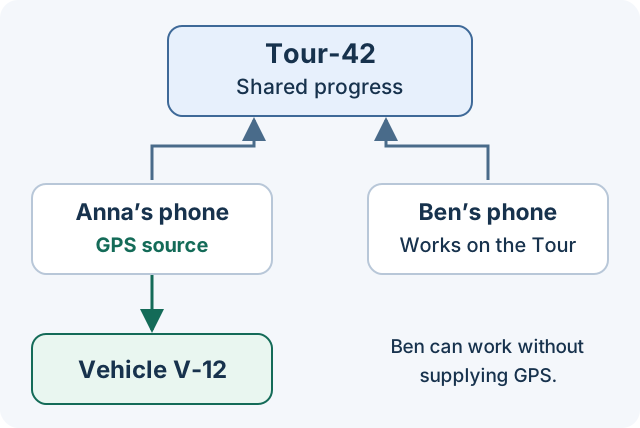
An explicit phone-to-phone source change requires permission. It does not sign out teammates or remove their access to the Tour. Open More → Vehicle for this Device to see the current association, whether the Device is fixed or portable, and whether it supplies location.
The Location source panel shows the selected tracker, fixed tablet or portable phone and the age of the last position. You can also see it while reviewing a Tour's Vehicle. If a new source has not sent a position yet, Tourfold tells you separately from the age of any retained position. Selecting a source does not mean GPS is live. Use Refresh to check the latest state.
Location can be missing without stopping the work
A stale or offline tracker or fixed tablet is not automatically replaced by another Device. The Vehicle keeps its last-known position with its age and source status. Otherwise valid Tour work can continue.
When your Tour uses another Vehicle
Planning a future Tour changes no sign-ins or Device associations. When a Tour with assigned Vehicles starts, Tourfold checks the current Device sessions of its participants:
| Device still linked to a Vehicle outside the Tour | What happens |
|---|---|
| Portable phone | Its old Vehicle association ends. The user stays signed in. A starting phone can then supply the chosen Tour Vehicle when no tracker or fixed tablet takes priority. |
| Fixed tablet | The participant is signed out on that tablet. The tablet stays enrolled and fixed to its original Vehicle, with its source configuration intact. |
For example, Ben is still signed into the fixed tablet in V-1. When his Tour starts with V-2, Tourfold signs Ben out on V-1's tablet. It does not move the tablet to V-2 or sign Ben out on his phone.
The backend also applies the compatibility rules to later logins, Device associations and Vehicle changes during work. Another participant can open the running Tour without a separate setup step. Simply viewing a Tour does not change anything.
Work without a Vehicle
If you start a Tour without any Vehicles, or remove its last Vehicle during work, Tourfold ends the participants' portable Vehicle associations. Those phones stop supplying their previous Vehicles' positions, while their users stay signed in. The Vehicles retain their last-known positions.
Fixed tablets keep their fixed association, source configuration and user sign-ins. Having no assigned Vehicle does not mean you have moved to a different one. You can keep working and finish the Tour on a fixed tablet. Reporting settings still apply; keeping a source configured does not enable GPS.
Respect reporting settings
Your administrator controls whether app location reporting is disabled, allowed during work or continuous. Phone operating-system permissions also apply. Selecting a phone as the GPS source does not override those settings or authorize reporting outside the allowed times.
For a portable phone, during work follows the signed-in person's active work. For a fixed tablet, it follows the associated Vehicle's use on an active Tour. The tablet can therefore continue supplying that Vehicle's location after a person signs out; those positions are not attributed to the former user. When the Vehicle's active use ends, reporting under during work ends too.
With continuous reporting, the selected source can keep updating the Vehicle's location between Tours. Those positions are not attributed to a finished Tour. During work reporting still stops when the applicable work eligibility ends.
Finish, sign out or disconnect
| Action | What happens |
|---|---|
| Finish Tour | Ends active Vehicle use. Keeps the Device association and sign-ins. |
| Sign out of your user account | Removes your user session. Keeps the Vehicle association and Tour state. |
| Your Tour starts with another Vehicle while you are signed into a fixed tablet | Signs you out on that tablet only. Keeps its Device enrollment, association and source configuration. |
| Disconnect this Device from the Vehicle | Ends the association, including a fixed association. The app Device can be used as portable on its next assignment. Keeps your sign-in and the Tour's Vehicle assignment. |
| Log out Device | Reports the Device logout to Tourfold and ends its Vehicle association after confirmation. Does not finish the Tour. |
Disconnecting the GPS source does not automatically select a replacement. Check the current state after a failed or uncertain request; a pending logout must not disconnect a newer association.
Use More → Log out Device when you want to stop using this Device. The same action is available on the sign-in page after you have signed out of your account. Read the confirmation: it ends this Device’s Vehicle association and user session, stops location reporting and removes its local credentials. Your Tour assignments stay in place. You will need to set up the Device again before using it.
If the connection fails, choose Check again / retry. Keep the app’s credentials until Tourfold confirms the result. If a different Vehicle association or user session has appeared, confirm the new logout separately. If Tourfold confirms logout but the app cannot finish cleaning up locally, retry from the same screen; location reporting remains paused.
Print Vehicle QR labels
Under Settings → Vehicles → Print QR codes, select the Vehicles, choose a supported A4 label sheet and review the preview. You can choose the first unused label on a partly used sheet, then download a print-ready PDF.
Each label shows the Tourfold logo inside the QR code and the Vehicle's ID underneath, for example ID: VAN-12. The code identifies the Vehicle and workspace; it contains no sign-in details. Label formats and a buying guide will be published with the printing feature after validation.
Return to Tours, Tasks and Vehicles.